HTTPS Setup Using a Load Balancer
The Swagger Studio web application is initially accessible over HTTP. HTTPS can be implemented in two ways, one of which is to put a load balancer with SSL termination (also known as SSL offloading) in front of your Swagger Studio On-Premise instance. In this scenario, DNS lookups for your Swagger Studio On-Premise domain must resolve to the load balancer.
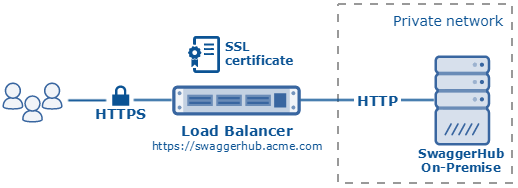
This page provides general guidelines for configuring a load balancer. The exact configuration depends on which load balancer you use. If you run Swagger Studio on AWS, our AWS deployment guide contains step-by-step instructions for configuring an Application Load Balancer (ALB) in AWS.
SSL certificate
You will need to install an SSL certificate on the load balancer. The load balancer will use this certificate to secure incoming connections from your users, and decrypt HTTPS requests before forwarding them to Swagger Studio over HTTP. You can get an SSL certificate from a Certificate Authority (CA) or use a self-signed certificate.
Your Swagger Studio domain name must match the certificate Common Name (CN) or one of the Subject Alternative Name (SAN) entries. For example, if you want to host Swagger Studio at https://swaggerhub.acme.com, then swaggerhub.acme.com must be specified in the certificate CN or SAN, or you can use a wildcard certificate for *.acme.com.
Note
CN cannot be an IP address, it must be a resolvable fully-qualified domain name (FQDN) or a wildcard domain. IP addresses can be specified only as SAN entries in the certificate.
Considerations for self-signed certificates
Self-signed certificates are supported in Swagger Studio On-Premise 1.18.6 and later.
If your load balancer’s SSL certificate is self-signed or issued by a private CA, you will need to upload your CA bundle to Swagger Studio. CA bundle is a PEM file containing the intermediate and root certificates used to establish the full chain of trust. This is required so that Swagger Studio subsystems can trust your self-signed certificate.
The order of certificates in the PEM file must be such that each one certifies the one before it. That is, lower-level certificates first, the root certificate last.
-----BEGIN CERTIFICATE-----
intermediate certificate 1
-----END CERTIFICATE-----
-----BEGIN CERTIFICATE-----
intermediate certificate 2
-----END CERTIFICATE-----
-----BEGIN CERTIFICATE-----
CA root certificate
-----END CERTIFICATE-----
Important
There must be no blank lines at the beginning and end of the file, and between the -----BEGIN CERTIFICATE----- and -----END CERTIFICATE----- lines.
Some self-signed certificates are their own CA. In this case, include just the certificate itself in the PEM file (without the private key). In the general case, however, the certificate itself should not be included here.
Port listeners
Use the following port listeners in your load balancer to handle incoming HTTPS/SSL requests:
Listener Port | Listener Protocol | Destination Port | Destination Protocol | Comments |
|---|---|---|---|---|
80 | HTTP | 80 * | HTTP | Optional – HTTP access to Swagger Studio |
443 | HTTPS (use an SSL certificate) | 80 * | HTTP | HTTPS access to Swagger Studio |
* If you run Swagger Studio on VirtualBox in the NAT mode, the destination port is the host listening port configured in port forwarding, usually 8000 instead of 80.
Health checks
A load balancer can send periodic health check requests to the target instance to make sure it is up and can accept the forwarded client requests. If a health check fails, the load balancer can stop forwarding the traffic to the instance until the health check succeeds again.
Use the following health checks for your Swagger Studio On-Premise instance:
Protocol | Port | Path | Full URL | Expected HTTP Status Code | Comments |
|---|---|---|---|---|---|
HTTP | 80 * |
|
| 200 | Swagger Studio main web app |
HTTP | 80 * |
|
| 200 | Admin Center |
* If you run Swagger Studio on VirtualBox in the NAT mode, the destination port is the host listening port configured in port forwarding, usually 8000 instead of 80.
Domain name
Your Swagger Studio domain name must be configured to point to the load balancer so that all the requests – both regular HTTP/S requests and WebSocket requests – hit the load balancer first, instead of going directly to the Swagger Studio VM. The domain name must match the CN or SAN of the certificate used by the load balancer.
Configure Swagger Studio for HTTPS access
Once you have configured a load balancer, you need to make Swagger Studio aware that the HTTPS/SSL encryption is offloaded to the load balancer:
Open the Admin Center.
Switch to the Settings page.
In the Basic Settings section, specify the DNS name for this server – a domain name that points to the load balancer.
In the Privacy section, change the SSL Termination setting to .
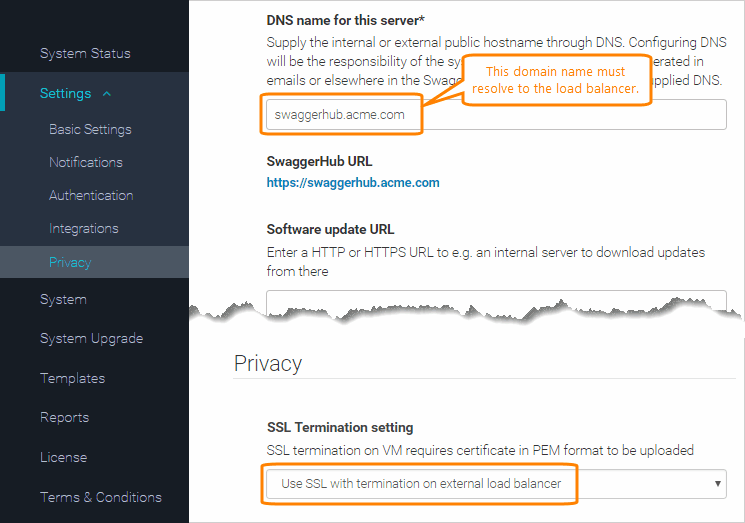
If your SSL certificate is self-signed or issued by a private CA, do the following:
In Swagger Studio On-Premise v. 1.19.2 and later:
In the Admin Center, switch to the Certificate Manager page.
Click Import Certificate and upload your CA bundle PEM file containing the CA root and intermediate certificates (see above).
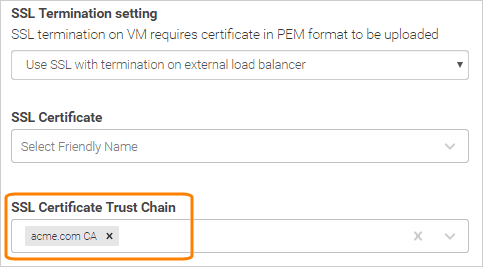
In the Admin Center, switch to the Settings > Privacy page.
Select the uploaded CA bundle from the SSL Certificate Trust Chain list:
In Swagger Studio On-Premise v. 1.18.6–1.19.1:
Upload your CA bundle PEM file (see above) to the SSL Certificate Trust Chain field. Note: Click Upload to complete the upload.
Click Save Changes and Restart.
In v. 1.19.1 or earlier, click Save Changes, then switch to the System page and click Restart Swagger Studio.
Wait a few minutes for the system to restart completely.
Now, you can access Swagger Studio On-Premise using HTTPS:
https://Your.Swagger Studio.Domain and access the Admin Center also using HTTPS:
https://Your.Swagger Studio.Domain/ui/index.html Redirect from HTTP to HTTPS
For added security, you might want to automatically redirect users from HTTP to HTTPS (in other words, to force HTTPS). There are several ways to do this:
Some load balancers support HTTP-to-HTTPS redirection via the load balancer configuration. For example:
AWS Application Load Balancer (ALB) provides the "redirect" rule for port listeners. You can find an example in our AWS deployment guide.
Newer versions of HAProxy provide the
http-request redirect schemedirective to redirect requests.
Another way to force HTTPS is not to expose a port 80 listener on the load balancer so that the users must always use
https://to access Swagger Studio, andhttp://will not work.
Notes
After you set up HTTPS, make sure to update any inbound links to your Swagger Studio instance, such as:
Domain references in existing API definitions.
The Swagger Studio callback URL used on GitHub (see GitHub Integration).
Swagger Studio URLs in your SAML identity provider used for single sign-on.
Calls to the Swagger Studio Registry API and to your API mocks.