Online Installation Into Existing OpenShift Cluster
This guide contains the steps to install Swagger Studio On-Premise to an existing OpenShift cluster. When complete, the Swagger Studio application will be deployed in the chosen namespace in the cluster.
Prerequisites
This guide assumes a OpenShift cluster has been prepared as specified in the Minimum Requirements.
All commands assume a jumpbox with connectivity to the cluster.
OpenShift CLI must be installed. The kubectl binary included with the OpenShift CLI must also be installed.
Special Considerations on Using Swagger Portal with OpenShift
Here, you will find outlines of special considerations for using Swagger Studio with OpenShift, specifically when the Swagger Portal feature is enabled.
How does Swagger Portal affect OpenShift
The feature creates rules with wildcard hosts in its Ingress configuration. This means subdomains can route traffic to specific portals within Swagger Studio. For example, if your Swagger Studio domain is swaggerhub.example.com, portals might be exposed at addresses like org1.portal.swaggerhub.example.com or org2.portal.swaggerhub.example.com.
Why is there a special consideration for OpenShift
OpenShift's Ingress controller cannot handle routes with wildcard hosts by default. This means that when Swagger Studio creates its Ingress rules, the equivalent OpenShift rules that are created will be rejected.
How to enable wildcards in OpenShift
To ensure that your Swagger Studio portals are exposed correctly, you need to enable wildcards in OpenShift's Ingress controller. Before installing or upgrading Swagger Studio, you can edit the configuration of the default Ingress controller. For more information, go to Online Installation Into Existing Kubernetes Cluster.
Note
Update your Ingress controller configuration before upgrading Swagger Studio. For more information, go to Upgrading a 2.x installation and Online Installation Into Existing Kubernetes Cluster.
How to edit the Ingress controller configuration
Use the
kubectl edit ingresscontroller default -n openshift-ingress-operatorcommand. This opens the configuration file for the default Ingress controller in your OpenShift cluster.Locate the
routeAdmissionsection within the configuration file.Add the line 'wildcardPolicy: Wildcards Allowed' under
routeAdmission:apiVersion: operator.openshift.io/v1 kind: IngressController metadata: name: default namespace: openshift-ingress-operator spec: ... routeAdmission: wildcardPolicy: WildcardsAllowed ...Save the changes to the configuration file.
By enabling wildcards, you allow the Openshift routes for Portal to be accepted, including wildcard hosts. This ensures that your Swagger Studio portals are exposed correctly within your OpenShift environment.
Install with namespace-scoped access
By default, the installer assumes that your user has the cluster-admin role at the cluster level. Alternatively, you can install with namespace-scoped access if your user only has cluster-admin access on a single project. Be aware that installing without cluster-scoped access limits some functionality:
Without access to cluster-scoped resources, some preflight checks will not be able to run. These tools continue to function but return less data.
Support bundles will only be able to collect limited information.
The admin console "Snapshots" feature will not work because the admin console can't access the velero namespace.
The
kubectl kots velero ensure-permissionscommand can be used to create additional Roles and RoleBindings to allow the necessary cross-namespace access. For more information, see velero ensure-permissions in the kots CLI documentation.
This installs guide includes the commands needed to install with namespace-scoped access.
Create a project for Swagger Studio in OpenShift
On a computer with the OpenShift CLI and cluster access, log in to your cluster:
oc login -u USERNAME
If you do not already have a project for Swagger Studio in OpenShift, create it. If you do not have permissions to create a project, you may need to ask your administrator to complete this step:
oc new-project swaggerhub
Or, if you have created a project previously, switch to it:
oc project PROJECT_NAME
In this guide we will assume that the project name is swaggerhub.
Install KOTS plugin for oc and kubectl
Swagger Studio 2.x uses KOTS to manage the installation, licensing, and updates. KOTS is a plugin for kubectl. Swagger Studio requires KOTS 1.76.1 or later.
First, check if KOTS is already installed:
kubectl kots version
If you see Replicated KOTS 1.x.x and the version is:
1.76.1 or later --> skip to the next section;
1.76.0 or earlier --> updrade KOTS to the latest version.
If you see the “unknown command” error, proceed to install KOTS.
If you do not have root access or cannot write to the /usr/local/bin directory, you can download and install KOTS manually:
Download the latest release for your operating system from:
 https://github.com/replicatedhq/kots/releases/latest
Linux and macOS are supported.
Unpack the release.
Rename the
kotsexecutablekubectl-kots.Copy the renamed
kubectl-kotsto anywhere on thePATH.
Launch the installation
The following will begin the installation process. It will:
Deploy an administration server to the cluster.
Ask for a new password for the administration service. Provide a new password, record it, and keep it safe.
When the server is ready, it will create a port forward to be accessible from the install VM.
To install with cluster-scoped access, run this command:
$ kubectl kots install swaggerhub --namespace swaggerhub
Alternatively, to install with namespace-scoped access, run this command:
$ kubectl kots install swaggerhub --namespace swaggerhub --skip-rbac-check --use-minimal-rbac
With namespace-scoped installs you may see some error messages like "Failed to get OpenShift server version". This is a known issue and the messages can be safely ignored.
You will then be prompted to enter a password for the administration console:
* Deploying Admin Console
  * Creating namespace [x]
  * Waiting for datastore to be ready [x]
Enter a new password to be used for the Admin Console: ********
* Waiting for Admin Console to be ready [x]

* Press Ctrl+C to exit
* Go to http://localhost:8800 to access the Admin Console
At this point, the base installation is finished. You can press Ctrl + C anytime to end the port forwarding session to the Admin Console.
At any time in the future, you can resume port forwarding to the Admin Console with this command and finish the session with Ctrl + C.
kubectl kots admin-console --namespace swaggerhub
• Press Ctrl+C to exit
• Go to http://localhost:8800 to access the Admin Console
Note
If SSH is routing to this console, for example a jumpbox situation, port forwarding will be needed to access the admin console from a local desktop. The example below will show how to tunnel from the administrator’s desktop to the jumpbox VM using SSH, which will then open port 8800 to reach the administrator console.
General example to tunnel from the administrator’s desktop:
ssh -i id_rsa -L 8800:localhost:8800 user@jump_box
Upload the license
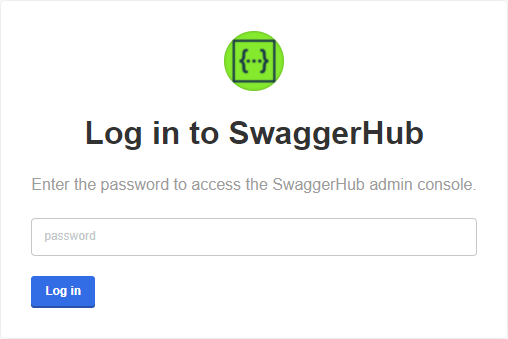
Browse to http://localhost:8800 and log in to the Admin Console using the administrator password that you set during deployment.
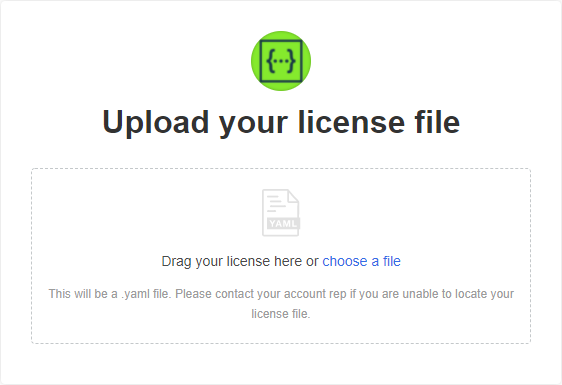
On the next screen, you will be asked to upload your Swagger Studio license file (.yaml):
 |
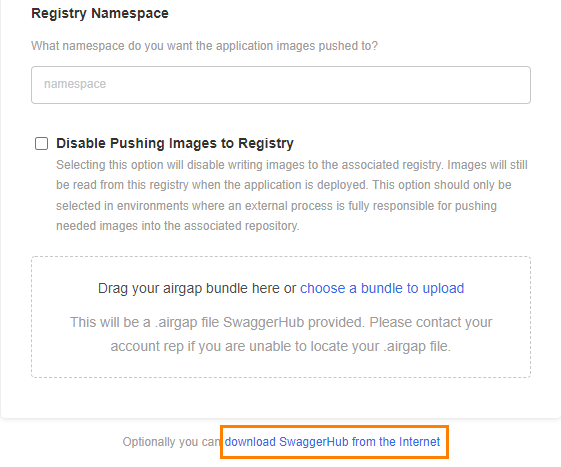
If your Swagger Studio license supports airgapped (offline) installations, you will see an option to proceed with the airgapped setup. Since you are installing Swagger Studio in online mode, click Download Swagger Studio from the Internet.
Configure Swagger Studio
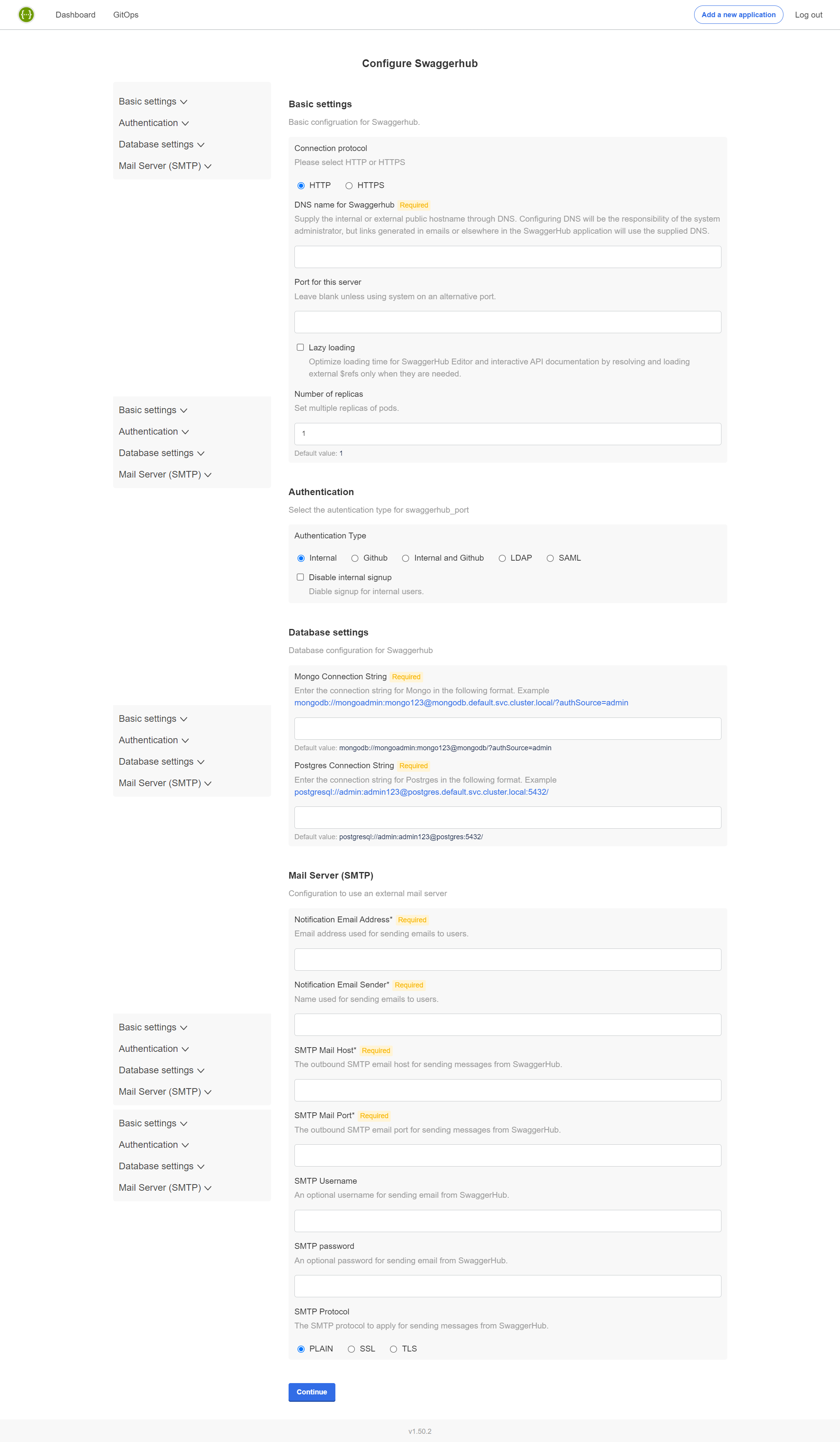
On the next page, you can specify the configuration settings for Swagger Studio. The required settings are:
DNS name for Swagger Studio - Specify a public or internal domain name that will be used to access Swagger Studio on your network. For example, swaggerhub.mycompany.com.
This domain name must already be registered in your DNS service. You will need to point it to the ingress controller.
Database settings - Choose between internal or external databases. If using external databases, you need to specify the database connection strings.
Important
It will not be possible to switch from internal to external databases or vice versa after the initial configuration.
SMTP settings - Specify an SMTP server for outgoing email.
Other settings are optional and depend on your environment and the desired integrations. Most settings can also be changed later. See Swagger Studio Configuration for a description of the available settings.
 |
Preflight checks
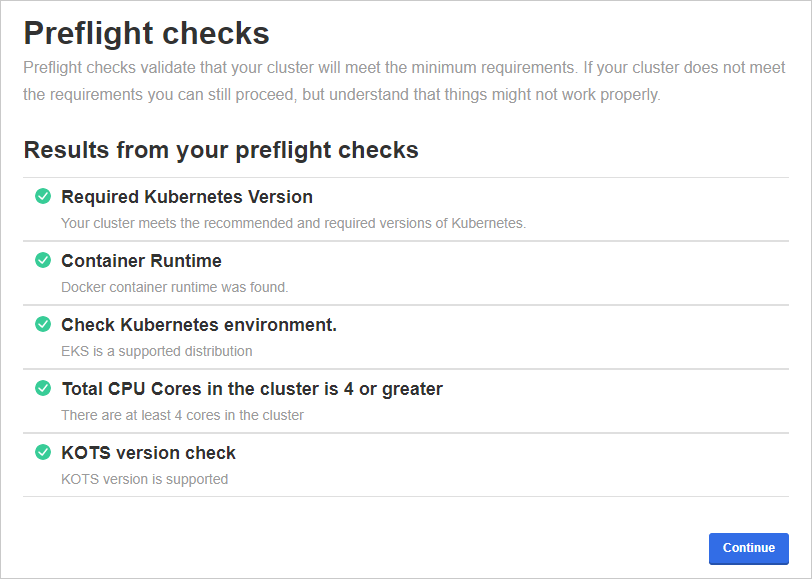
The next step checks your OpenShift cluster to ensure it meets the minimum requirements.
Note
If you are installing in namespace-scoped mode, you will not be able to run the preflight checks in the UI. Follow the on-screen instructions to run the checks from the CLI.
If all preflight checks are green, click Continue.
If one or more checks fail, do not proceed with the installation and contact Support.
 |
Status checks
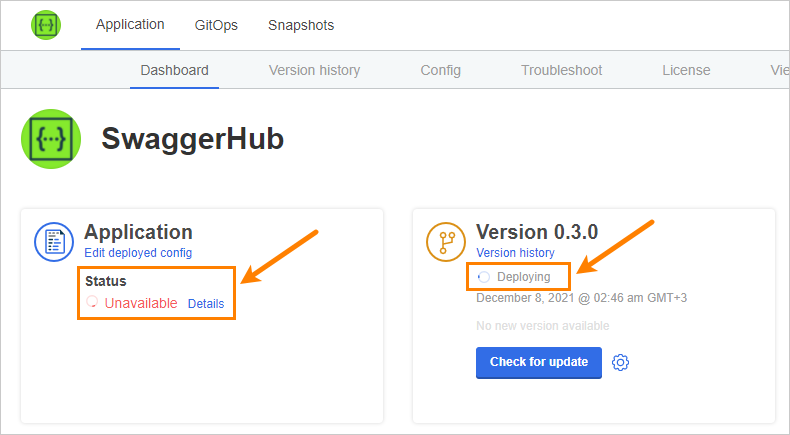
While the installer allocates resources and deploys workloads, the application status on the dashboard will be Unavailable. If it stays in this state for more than 10 minutes, generate a support bundle and send it to the Support team.
 |
Tip: To monitor the deployment progress, you can run
kubectl get pods -n swaggerhub
a few times until all pods are Running or Completed:
NAME                                       READY   STATUS      RESTARTS   AGE
kotsadm-85d89dbc7-lwvq2                    1/1     Running     0          32m
kotsadm-minio-0                            1/1     Running     6          13d
kotsadm-postgres-0                         1/1     Running     5          13d
spec-converter-api-584cc46657-hbfmd        1/1     Running     0          9m55s
swagger-generator-v3-6fc55cb57d-brwg6      1/1     Running     0          9m55s
swaggerhub-accounts-api-8bb87565b-xthkv    1/1     Running     0          9m55s
swaggerhub-api-service-546b56b94b-6jxch    1/1     Running     0          9m55s
swaggerhub-configs-api-794847bd79-jnlhl    1/1     Running     0          9m55s
swaggerhub-custom-rules-5ccfd45599-d5bxc   1/1     Running     0          9m55s
swaggerhub-frontend-69b7c55595-n7vsj       1/1     Running     0          9m55s
swaggerhub-notifications-bbd5f8794-ggz99   1/1     Running     0          9m55s
swaggerhub-operator-758c997747-hnjt7       1/1     Running     0          9m55s
swaggerhub-pre-install-r9c2f               0/1     Completed   0          13d
swaggerhub-pre-upgrade-cg664               0/1     Completed   0          10m
swaggerhub-products-api-6dd446b654-7w7wn   1/1     Running     0          9m55s
swaggerhub-registry-api-886997fd7-8q8c7    1/1     Running     0          9m54s
swaggerhub-virtserver-79fdf54f98-wpmt8     1/1     Running     0          9m54s
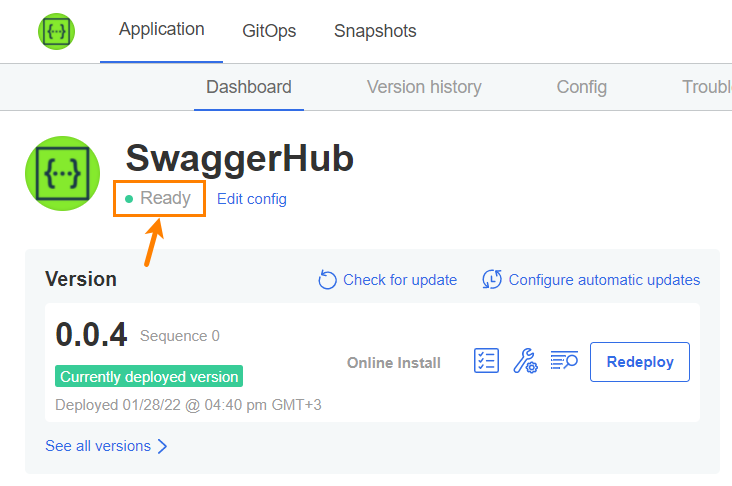
Once the application has become ready, the status indicators on the Dashboard become green.
 |
Create admin user and default organization
Run the following command to create an admin user and a default organization in Swagger Studio. Note the space in -- cmd.
Example:
kubectl exec -it deploy/swaggerhub-operator -n swaggerhub -- cmd create-admin-user admin -p p@55w0rd devops@example.com myorg
The admin username must be between 3 to 20 characters and can only contain characters
A..Z a..z 0..9 - _ .The admin password must be at least 7 characters long with at least 1 lowercase letter and 1 number. If the password contains characters that have a special meaning in Bash (such as
! $ &and others), enclose the password in single quotes (like-p '$passw0rd') or escape the special characters.
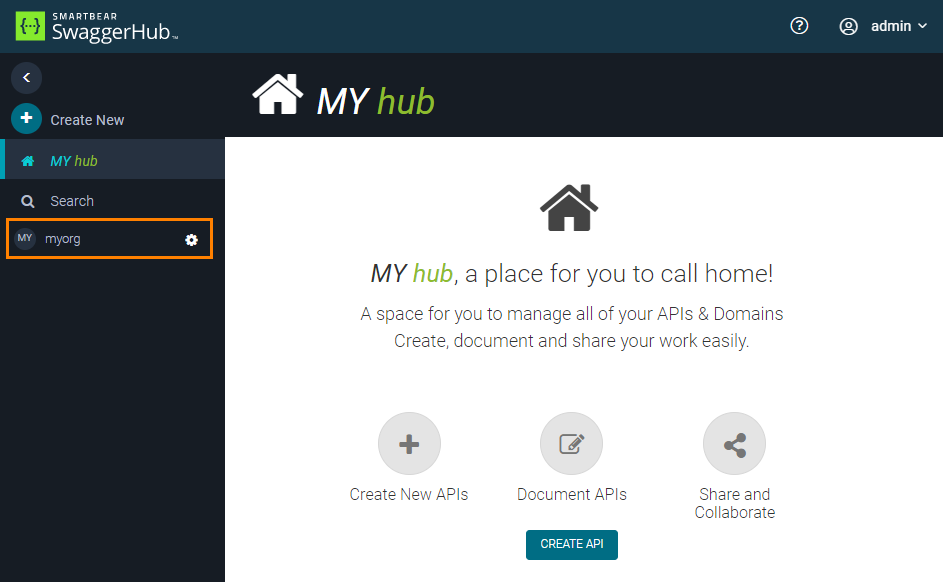
Once done, open the Swagger Studio web application at http://DNS_NAME and log in using the admin username and password. You should see the created organization in the sidebar:
 |
What’s next
Now that Swagger Studio is up and running, you can:
Add users to your organization in Swagger Studio and set their roles – either manually or using the User Management API.
Configure single sign-on using SAML, LDAP, or GitHub.